
Clear communication is vital in hospitality. As mobile tech shapes daily operations, Alkimii keeps your team informed and connected. This guide shows you how to navigate and use news posts in the Alkimii app to streamline updates and collaboration.
Explore our Quick Links
Launch the Alkimii App on your mobile. The default view is your home page, where you can see a list of your favourite tools, most recent news posts and notifications.
- To access the newsfeed, click "See All" on the News modal on the home page.
- Alternatively, navigate to "More" and select News.
- The news will display the most recent post and work down chronologically.
👉 Depending on your access level, you may be able to see additional features. If you have any questions, please don't hesitate to contact our customer success team at hello@alkimii.com
Create a News Post
Based on your app configuration, you can create a new post by tapping the "quick create" action button or selecting the "+" icon.
📚 For more information on the quick create button, click here!
- First, you will need to give your News post a "Title". This title will be visible in bold text on the post.
- Enter the body of text you wish to display on your news post. If you wish to add a link to a website, please ensure that you copy the full URL from your browser and simply paste it into the body of the content. If the link is particularly long, we advise pasting it at the end of the post to avoid taking up too much space.
- If you need to attach an image, video or PDF document, you can upload multiple attachments to the post. Simply click on the "+" under attachments.
Please ensure the Alkimii app allows access to the camera roll.
- To enable the "Allow direct chat link" option, ensure the box is ticked. This will allow your colleagues to message you directly from the post on your newsfeed.
- Choose whom you would like to receive the newsfeed post. You have the option to "Send to all properties" or you can select the Property, Departments and/or Individuals from the dropdown menu. Your post must have at least one recipient.
- If you wish to "schedule for later", you can select a date using the calendar function and set the time you want to post.
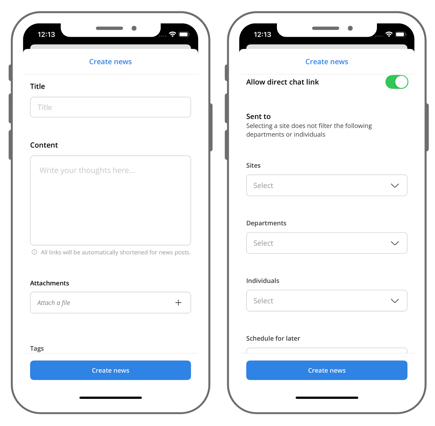
- To share this post in your newsfeed, click "Create News" at the bottom of the screen.
- You will be notified when your post has been published.
View & Interact with the News
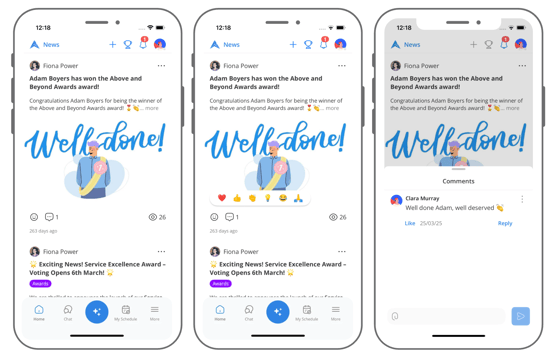
- You will be able to see the number of views your post has received with the eye icon, any reactions with the heart icon and the number of comments with the speech bubble icon.
- If the body of text is large you may need to select "more" to view the additional text
- Your team will be able to interact with the post by clicking on it and direct message you about it if the "Allow direct chat link" option has been enabled.
- To add a comment to the news post, simply click the speech bubble and type accordingly. Remember you can mention a colleague by "@" followed by typing their name. You can also add emojis to your comments.
- To react to the comment, click on the love heart icon and choose your reaction from the 6 options.
Filter & Search for News
- If you wish to locate a news post from a previous date you can select filters to quickly locate it.
- You can filter by "Tags" and "Author". If you have access to Alkimii Moments, you will also be able to filter by "Moment Type"
- You can select as many filter options as you like. For instance, in the "Tags" filter dropdown menu, you may choose between 2 and 3 options.